T: Order Cancellation & Reorder
Thank you so much for purchasing our T: Order Cancellable & Reorder App. This documentation will guide you through the setup and configuration process.
App Features & Pricing
- Pricing: $3.00 USD billed every month with a 3-day free trial.
- Our App enables customers to effortlessly cancel their orders with a single click.
- Let customer reorder their previous order items on their own, with one click.
- Our App provides extensive customization options for administrators to personalize labels, alert messages, success cancel order messages, and design customization.
- We provide customers with a customizable cancel order popup, allowing them to personalize the cancellation process according to their preferences.
- Our App offers customers the flexibility to provide a cancel order reason of their choice or select from a range of pre-defined cancel reasons.
- Our App offers an advanced search and filtering feature that allows administrators to easily navigate through the canceled order history and also they can navigate canceled order page.
- Our App provides SMTP (Simple Mail Transfer Protocol) settings that enable the sending of cancel order email notifications to customers.
- Our App allows administrators to customize the email subject and body for cancel order email notifications sent to customers.
Installation
Follow these steps to activate the app on your Shopify store:
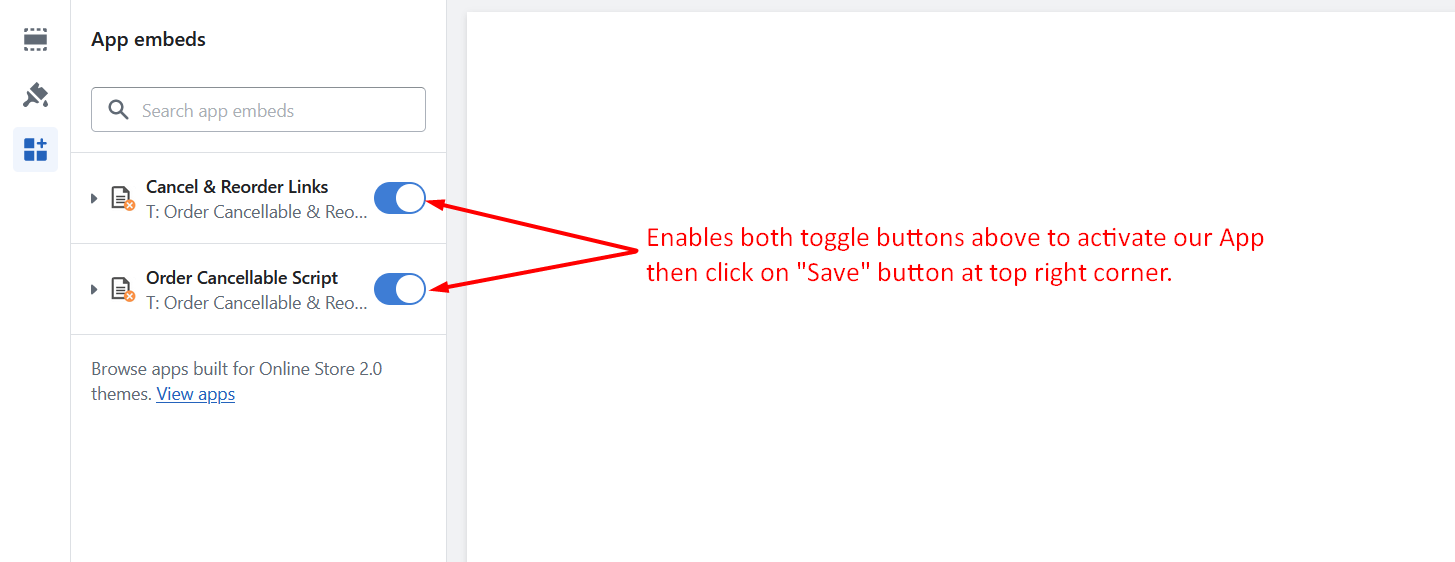
- Go to Online Stores >> Current theme >> Theme Customize section.
- Enable App embed(s) i.e. "Cancel & Reorder Links" and "Order Cancellable Script".
- Click on the "Save" button at top right corner!
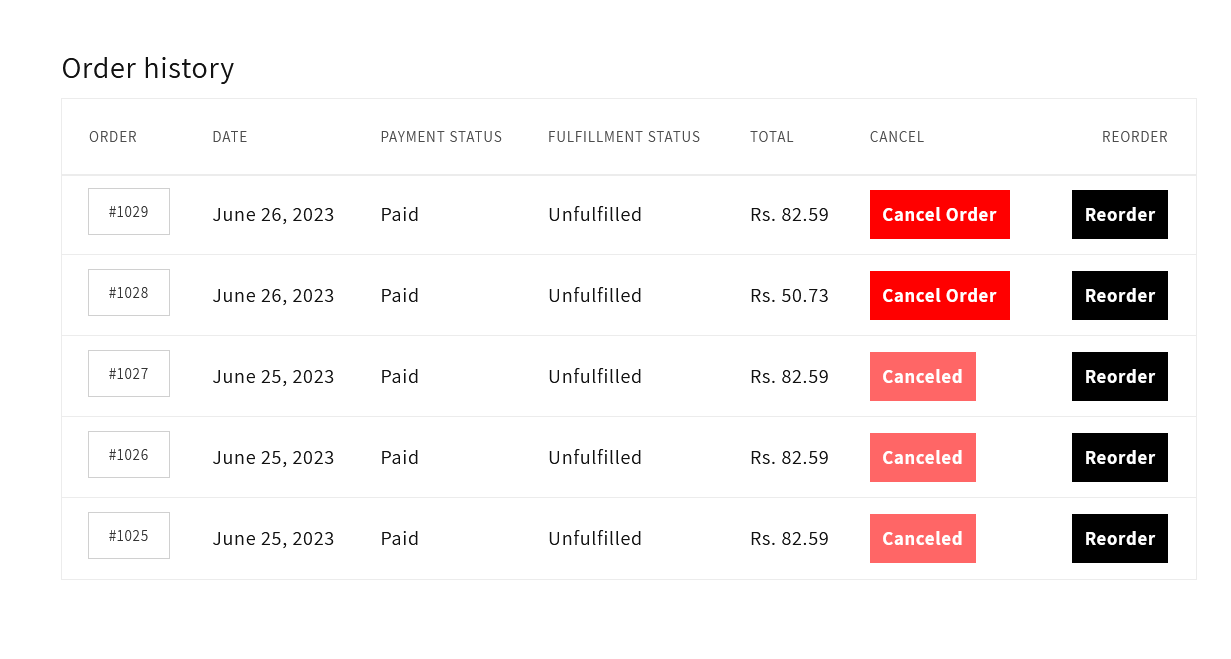
Frontend View
You can see "Cancel Order" and "Reorder" buttons in your account page. On this page, you have the option to cancel your order by simply clicking the "Cancel Order" button. Additionally, if you wish to create a reorder, you can click the "Reorder" button.
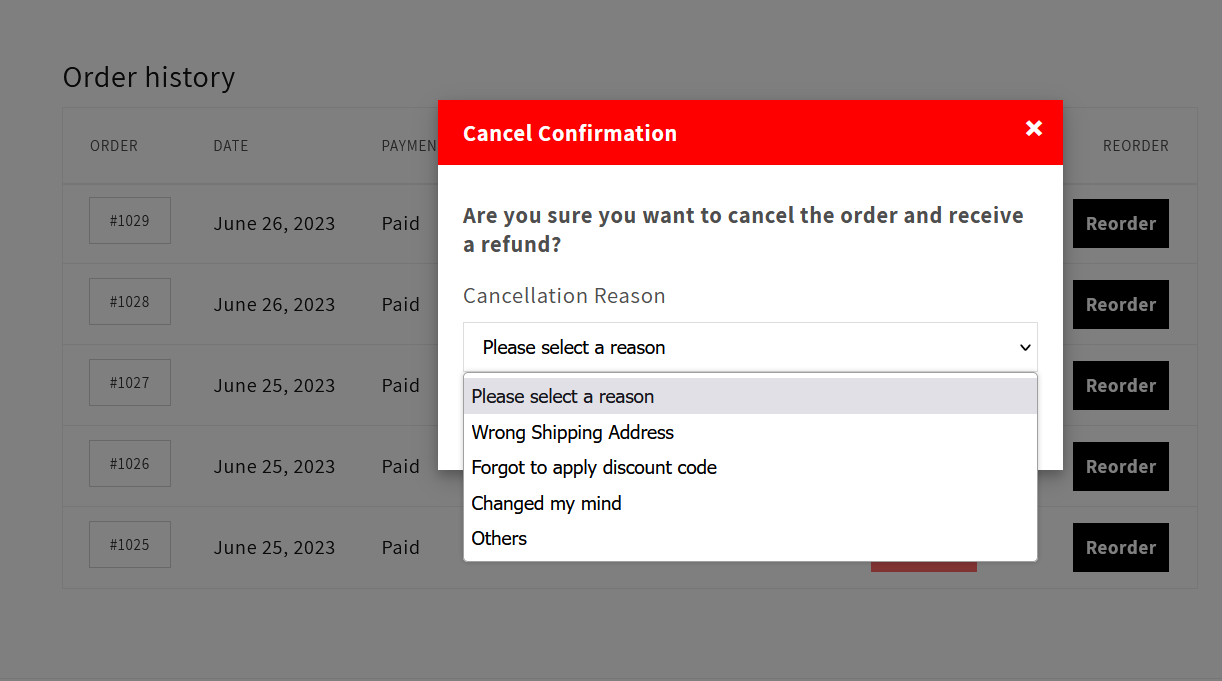
When you click the "Cancel Order" button, a cancel order popup will appear. Within the popup, you will have access to various pre-defined cancel order reasons. In addition to these options, you can also choose the "Others" option to add your custom reason. After selecting your preferred cancel order reason, you can proceed by clicking the "Proceed" button to cancel the order. Upon successfully canceling the order, a success message will be displayed, confirming the cancellation. This message ensures that you are informed about the successful cancellation of your order.
General Configuration
1. App Settings

- Enable App: You can enable/disable app by clicking toggle button.
- Order Table Selector: If you are not able to see "Cancel Order" and "Reorder" buttons in your order grid then please add table Class/Id (Ex: .classname and #idname).
How to find order table selector?
Set your order table element's (Which displays all the order details) "class-name" or "id-name" according to your theme (for Ex. .order-history). If your order container have class then please add ".order-history" and if your order container have id then please add "#order-history". How a merchant can find the Order table selector for their theme? For find order table selector right click on order table and inspect it. Check the below screenshot.
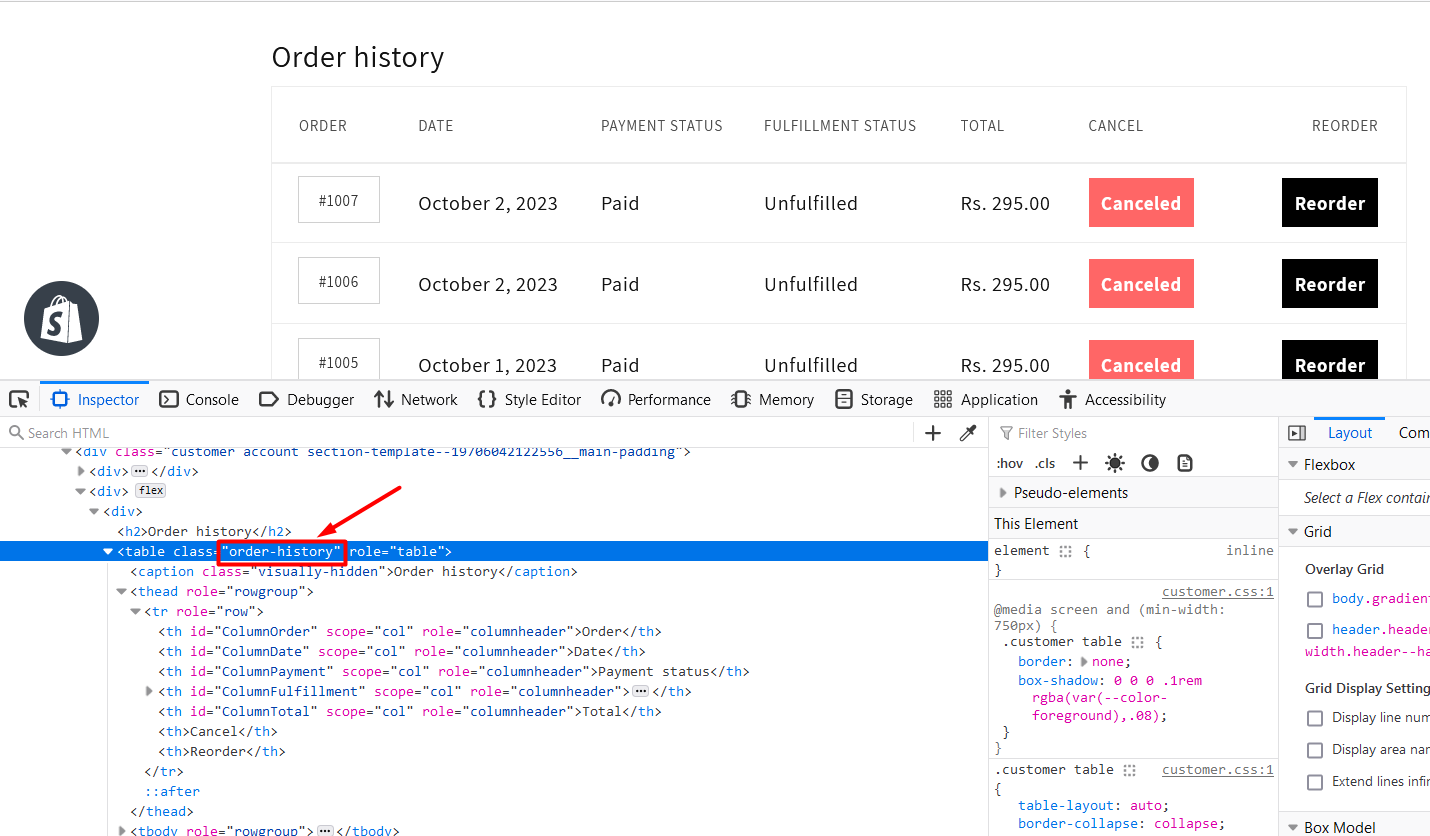
Please add the "order-history" class or id in the "Order Table Selector" general settings field.
2. Cancel Order Button Configuration
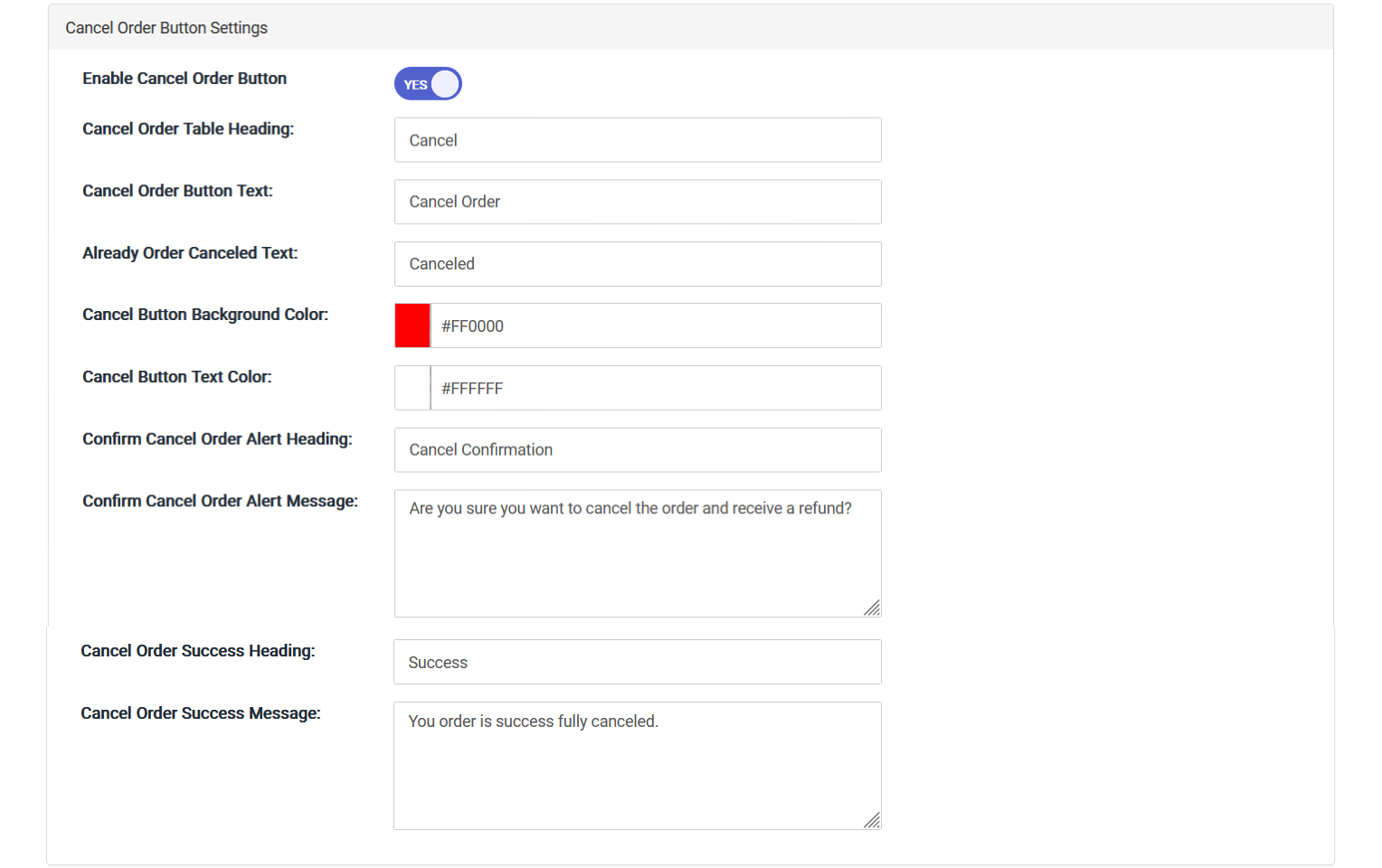
- Enable Cancel Order Button: You can enable/disable cancel button in order grid by clicking toggle button.
- Cancel Order Table Heading: To set the column heading for the cancel order in a table, you can label the respective column as "Cancel Order" within the table header.
- Cancel Order Button Text: You can set the button text for the "Cancel Order" button.
- Already Order Canceled Text: When you have already canceled an order, then this field text will appear on the "Cancel Order" button.
- Cancel Button Background Color: From here, you can set cancel order button background color.
- Cancel Button Text Color: From here, you can set cancel order button text color.
- Confirm Cancel Order Alert Heading & Message: Customize the confirmation popup heading and message.
- Cancel Order Success Heading & Message: Customize the success popup heading and message.
3. Reorder Button Configuration
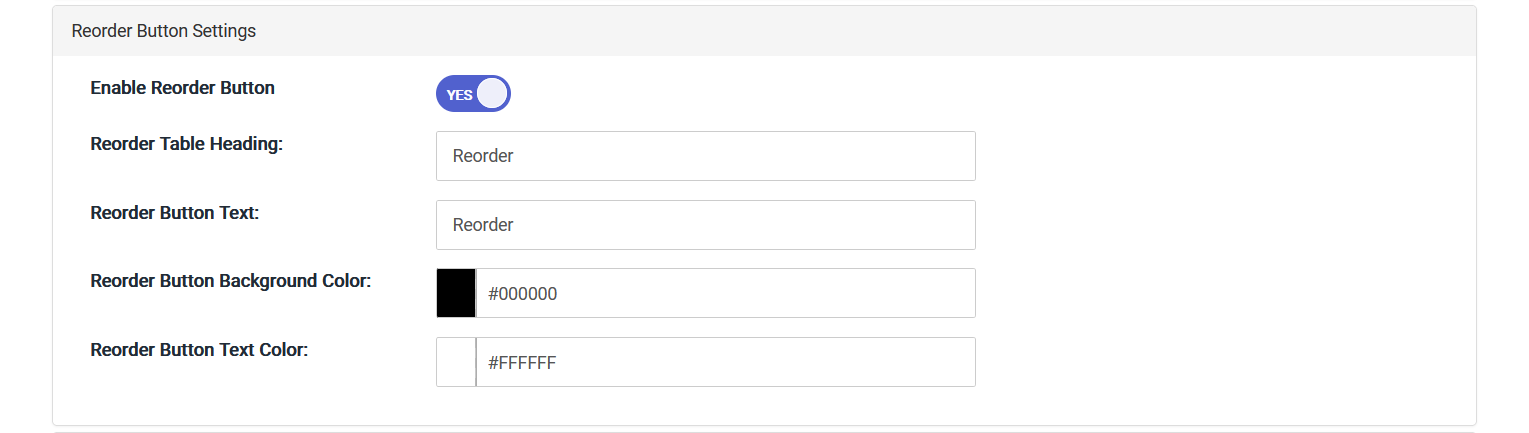
- Enable Reorder Button: You can enable/disable reorder button in order grid.
- Reorder Table Heading: Set the column heading for the reorder in a table.
- Reorder Button Text: You can set the button text for the "Reorder" button.
- Reorder Button Colors: Set button background and text colors.
4. SMTP Configuration
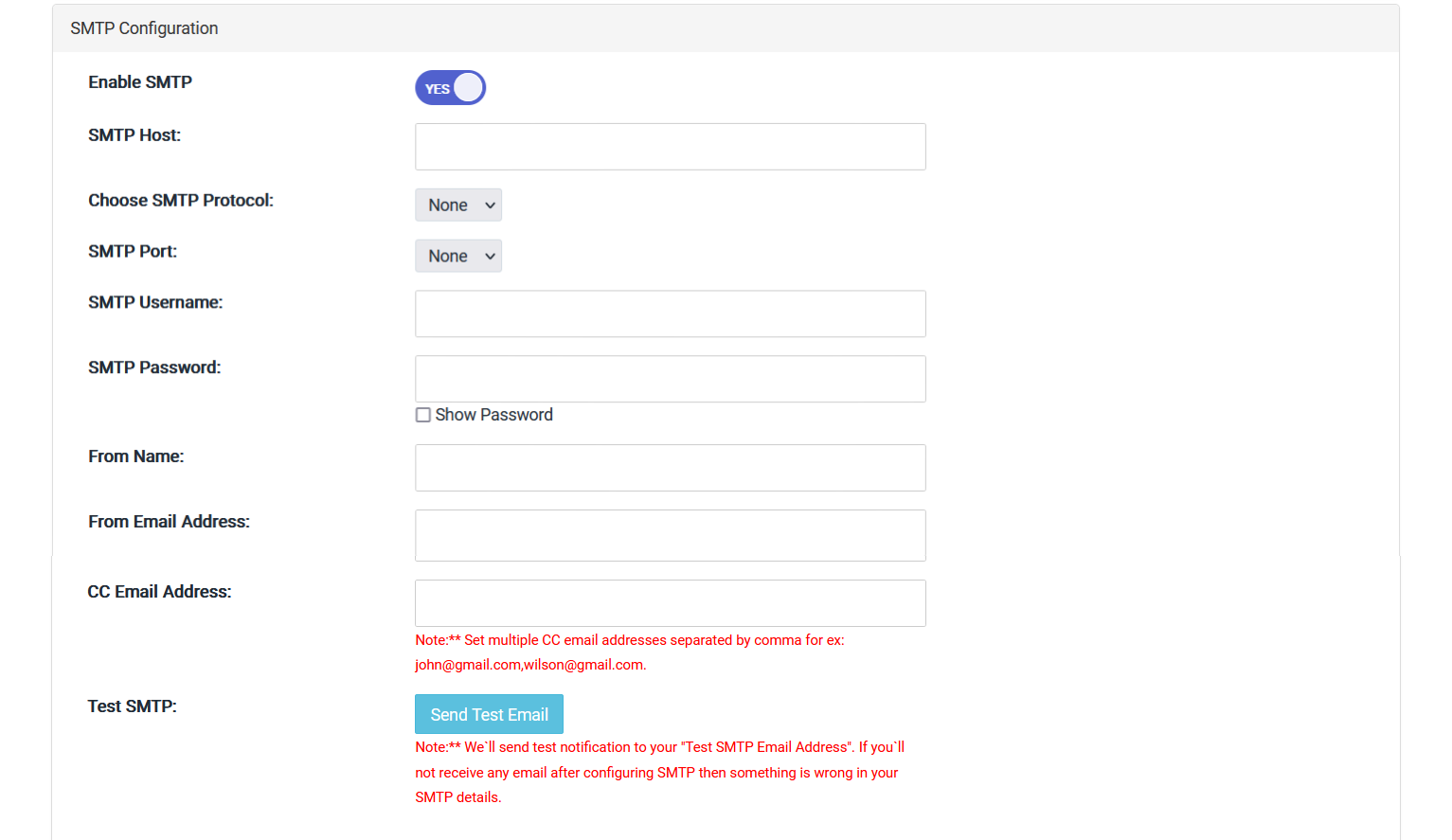
From here, you can configure SMTP settings for order cancel customer emails.
5. Email Template
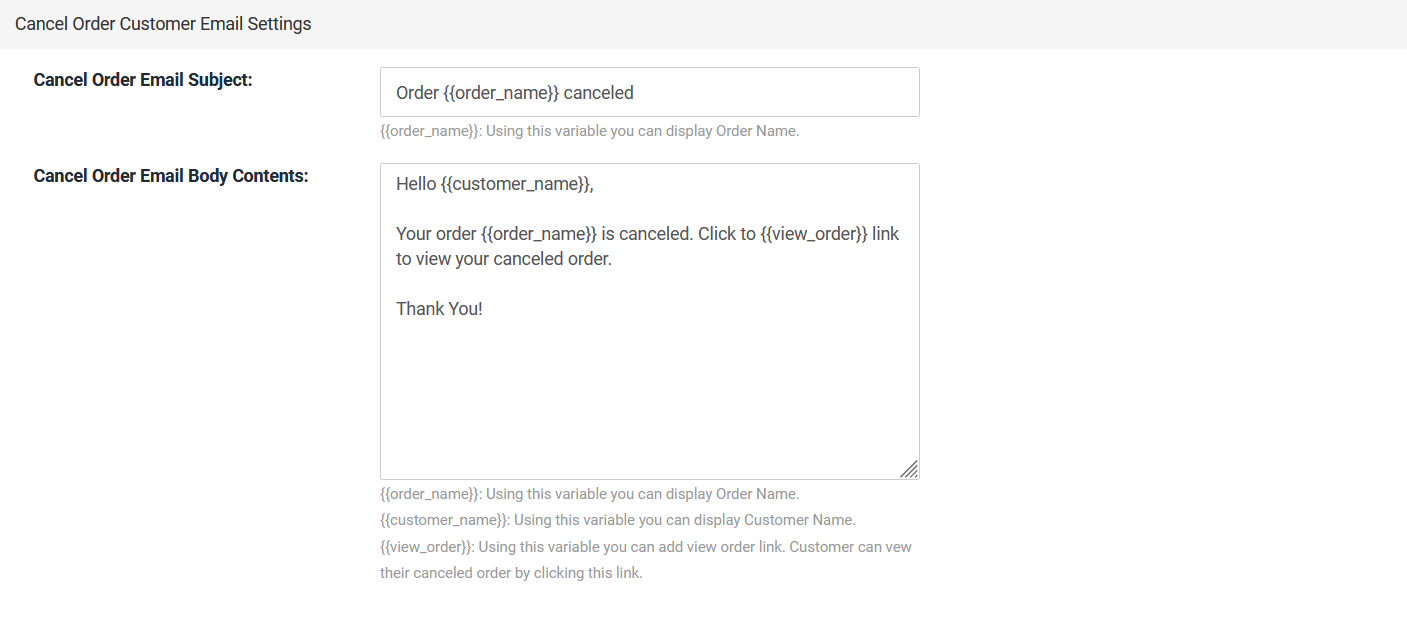
From here, you can configure cancel order email subject and email body. You can use variables for displaying dynamic value.
Cancellation History
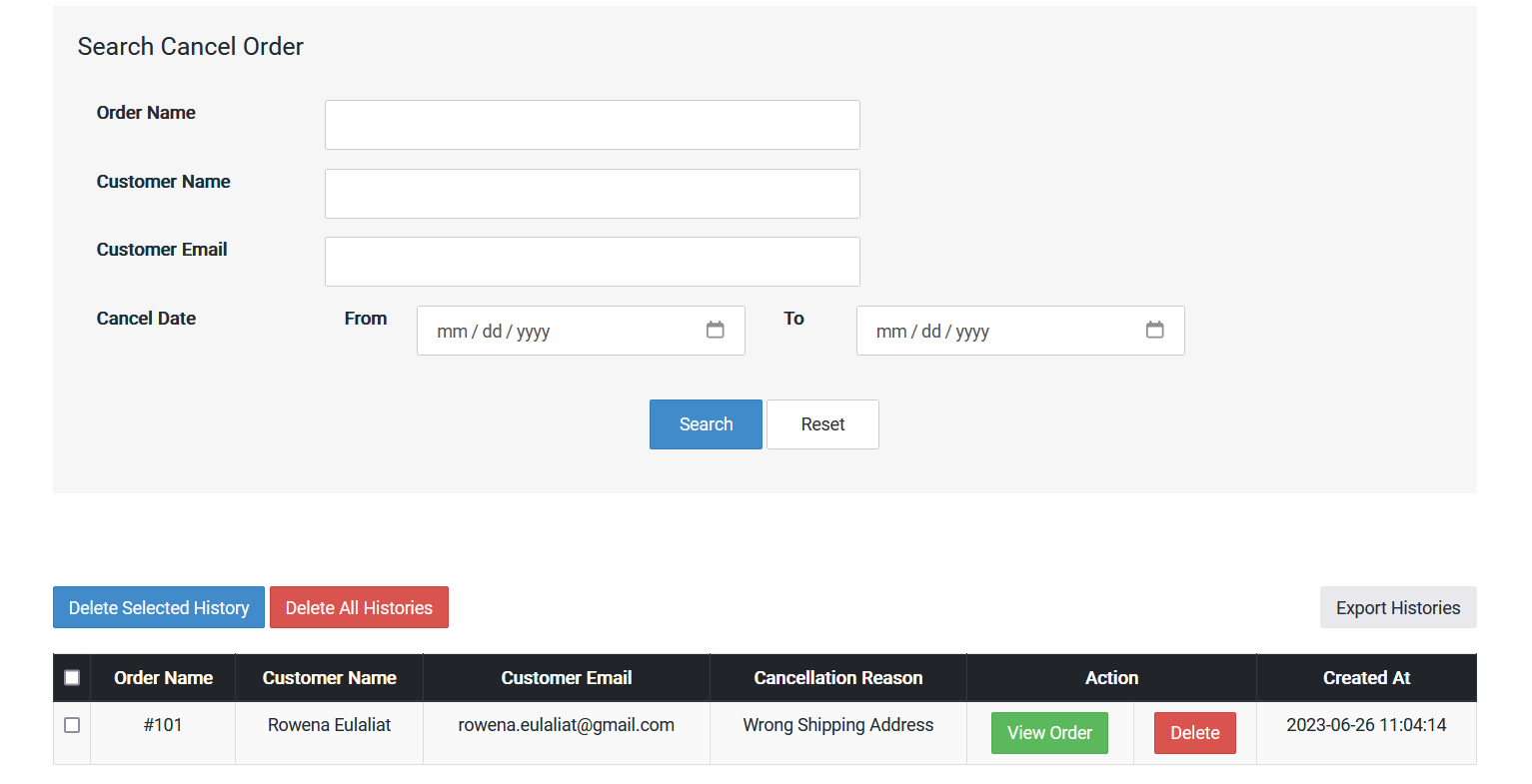
By clicking the "Search" button, you can search the cancel order history using various options. Furthermore, you have the ability to delete single or multiple histories by clicking the "Delete/Delete Selected" button. Additionally, you can view the cancel order details and export the records by clicking the "Export Histories" button.
Design Customizations
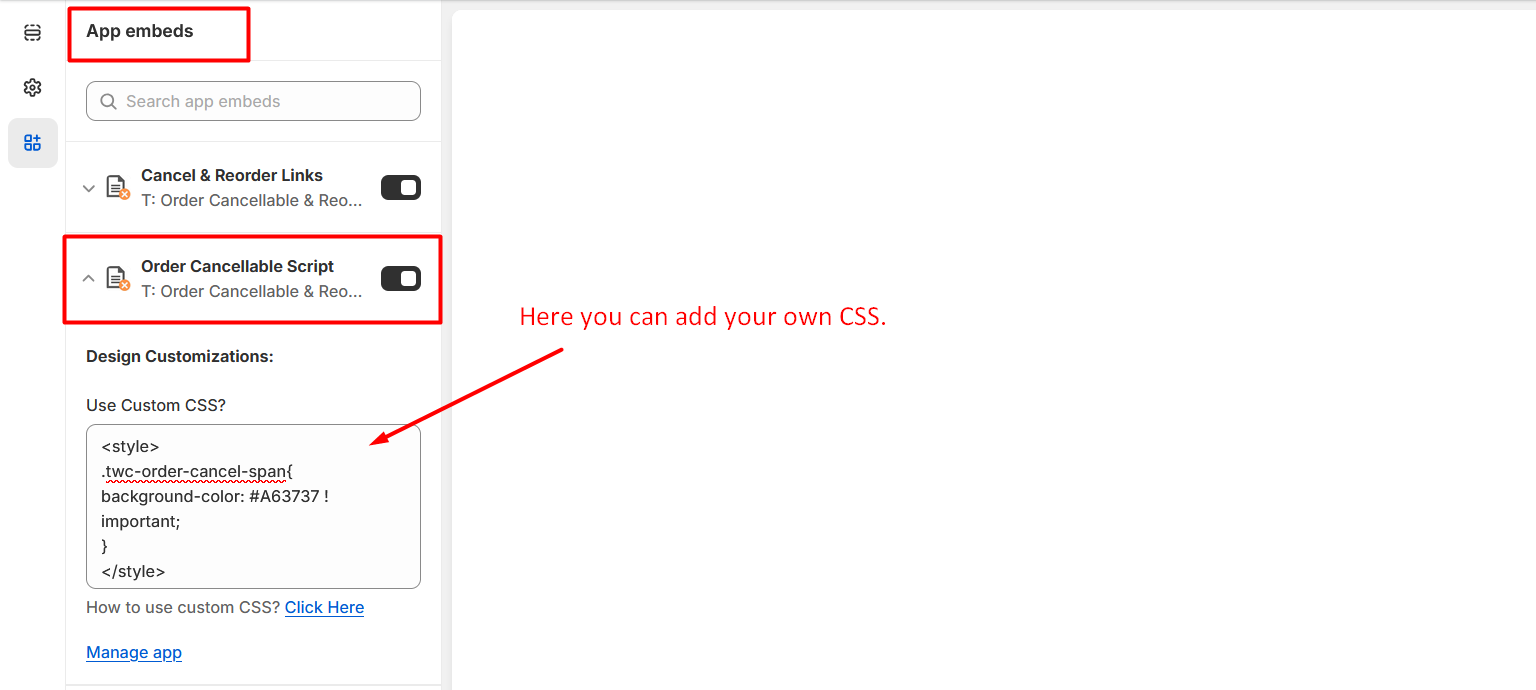
Go to Online Stores >> Live theme >> Theme Customize >> App embeds section then please open our App embed block i.e. Order Cancellable Script. Then you`ll see Design Customizations section just like below screenshot:
Here, you can enter your own CSS wrapped in style type tag.
Frequently Asked Questions
Find quick answers to common questions about the T: Order Cancellation & Reorder App.
Go to Online Store > Themes > Customize. Under the App Embeds section, enable both "Cancel & Reorder Links" and "Order Cancellable Script", then save. Also ensure you have configured the "Order Table Selector" in the app settings to match your theme's order history table.
The Order Table Selector is the CSS class or ID of the order history container on your account page. You can find it by right-clicking on your order table and inspecting the element. Common selectors include .order-history or #order-history.
Yes, customers can select from pre-defined cancellation reasons or choose the "Others" option in the popup to enter their own custom reason.
Yes, if you configure the SMTP settings in the app's General Configuration, you can send automated, fully customizable email notifications to your customers upon successful cancellation.
The app is $3.00 USD per month and includes a 3-day free trial so you can test out all the features before subscribing.
Contact Us
We are always here to help you. If you have any questions, face any issues, or need further assistance, please don't hesitate to reach out.
- Email: info@techwebcreation.com
- Website: techwebcreation.com